
Contents
It’s been five hours since you started collecting headings and alt texts… We have all been there.
Remember the panic when Google rolled out Panda, and copy-pasted content got hit? Back then, everyone learned to write a unique copy. Then came Penguin, and clean link building became a must. Mobilegeddon forced teams to think about mobile layouts. Every time someone shouted “SEO is dead,” it kept evolving and pushed new skills onto the checklist.
Now, the next step is automation. XPath is one of the ways to get there. While some people spend hours on repetitive checks, others pull the data they need with a single query and run analyses that used to feel out of reach. We know effective SEO runs on data, not guesses. This guide shows how XPath helps you extract that data.
The core problem
A typical task looks like this: check alt text for 500 images in a product catalog, collect competitor prices across dozens of sites, or find every outbound link on your own domain.
Off-the-shelf scrapers and SEO tools often fall short when you need something specific or the page is dynamic. Then you end up with three options: do it manually and lose a week, ask developers and wait a month, or drop the task.
The problem is that modern SEO work increasingly goes beyond pulling meta tags. You often need one exact data point buried inside a complex page structure, and that is where routine replaces focus, and time gets wasted.
How XPath helps
XPath (XML Path Language) is a query language for precise navigation through an HTML document (the DOM). It lets you select the nodes you need based on rules you set.
It describes how to move through the DOM from one node to another. A path is made of steps separated by /. Each step narrows the direction using hierarchy, axes, predicates, and functions. XPath points to the exact place where an element lives on a page.
In XPath, a “node” is not only an HTML element (<div>, <a>), It can also be:
- an attribute (
href,alt,data-*), - text inside a tag,
- comments and other parts of the document.
With XPath, you can extract more than “the <a> tag.” You can pull a specific href value, the label on a button, or an image description, which many basic tools cannot get cleanly without workarounds.
What it looks like:
//div[@class="product"]/h2
//searches for an element anywhere in the document;div[@class="product"]finds a<div>with classproduct;/h2moves to its direct child<h2>.
More complex queries follow the same logic. You add conditions, filters, and functions to select data with high precision.
✌️ No-headache SEO
Follow us on LinkedIn, we share more tools, experiments, and practical SEO notes.
How and where to use XPath
No complex setup is required. Everything starts in the browser and can be done with tools that are already familiar.
1. Developer tools
Open DevTools (F12) and switch to the Console tab. Run:
$x("your_xpath_query"), for example $x("//h1")
This lets the expression be checked on the spot and immediately shows which elements were found on the page. It is also a practical way to iterate, narrow conditions, and debug more complex selectors that standard tools do not export well.
2. Google Sheets (IMPORTXML)
With IMPORTXML and XPath, it is possible to extract almost any data from a page’s HTML, including:
- Meta tags (title, description, keywords).
- Headings (H1–H6).
- Text content of page elements.
- Product prices and attributes.
- Contact information, including email addresses.
- Link and image attributes.
- Structured data (for example, JSON-LD).
For regular pulls from multiple URLs, use this formula:
=IMPORTXML("URL"; "XPath_query")
Ready-to-use XPath examples:
| What to extract | XPath query | How it works |
|---|---|---|
| All URLs from sitemap.xml | //*[local-name()=’loc’]/text() | Extracts the contents of <loc> tags while ignoring namespaces. |
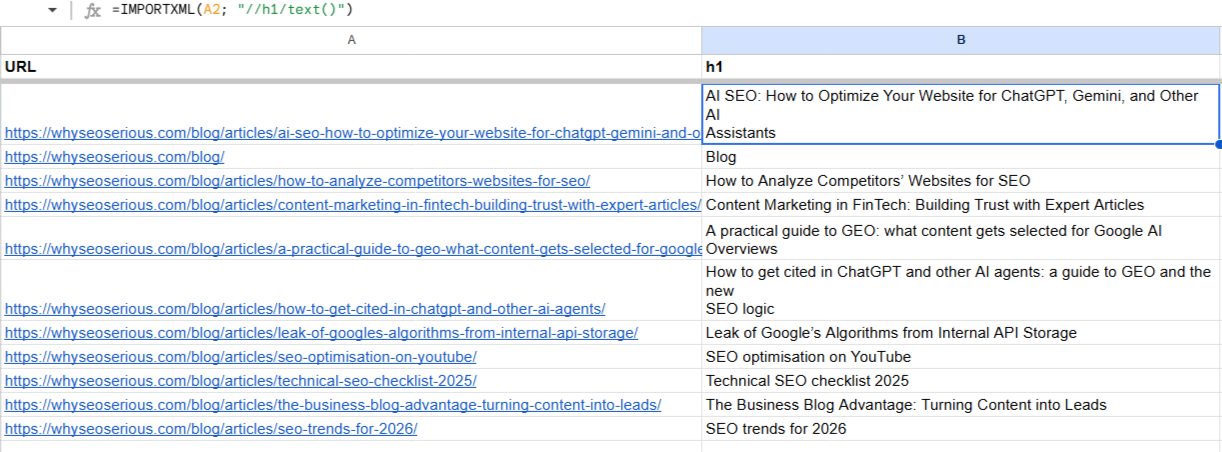
| H1 heading from a page | //h1/() |
Typical uses: • monitoring own headings during large-scale edits or a site migration; • comparing headings on competitor landing pages; • finding pages without an H1 or with duplicated headings; • checking heading length and how well it matches the content. |
| Discounted price | //span[contains(@class, ‘price–discount’)] | Finds <span> elements whose class contains the substring price--discount. |
| All email addresses | //a[starts-with(@href,’mailto:’)]/@href | Finds links that start with mailto: and returns the href value. |
| HTTP status codes in Google Sheets (via a third-party checker) | =SUBSTITUTE(IMPORTXML(“https://STATUS-CHECKER-EXAMPLE/?url=” & A2, “XPATH_TO_STATUS_CODE”), “HTTP/1.1 “,”” | Sometimes it is easier to pull HTTP status codes through a third-party status checker page. You pass a URL into that page, it returns an HTML response with the status, and then IMPORTXML extracts the code. |
Notes:
- The exact URL format and XPath depend on the checker you use. You may need to adjust the XPath to match its HTML.
IMPORTXMLreads the initial HTML only. If the checker renders results via JavaScript, this approach will not work.- For regular pulls, keep the list of URLs in column A and fill the formula down.
Important: IMPORTXML works only with the initial HTML. It does not render content loaded via JavaScript.
3. Screaming Frog SEO Spider
If you need to extract the same data across hundreds or thousands of pages, Screaming Frog is one of the fastest ways to do it. XPath works there through Custom Extraction.
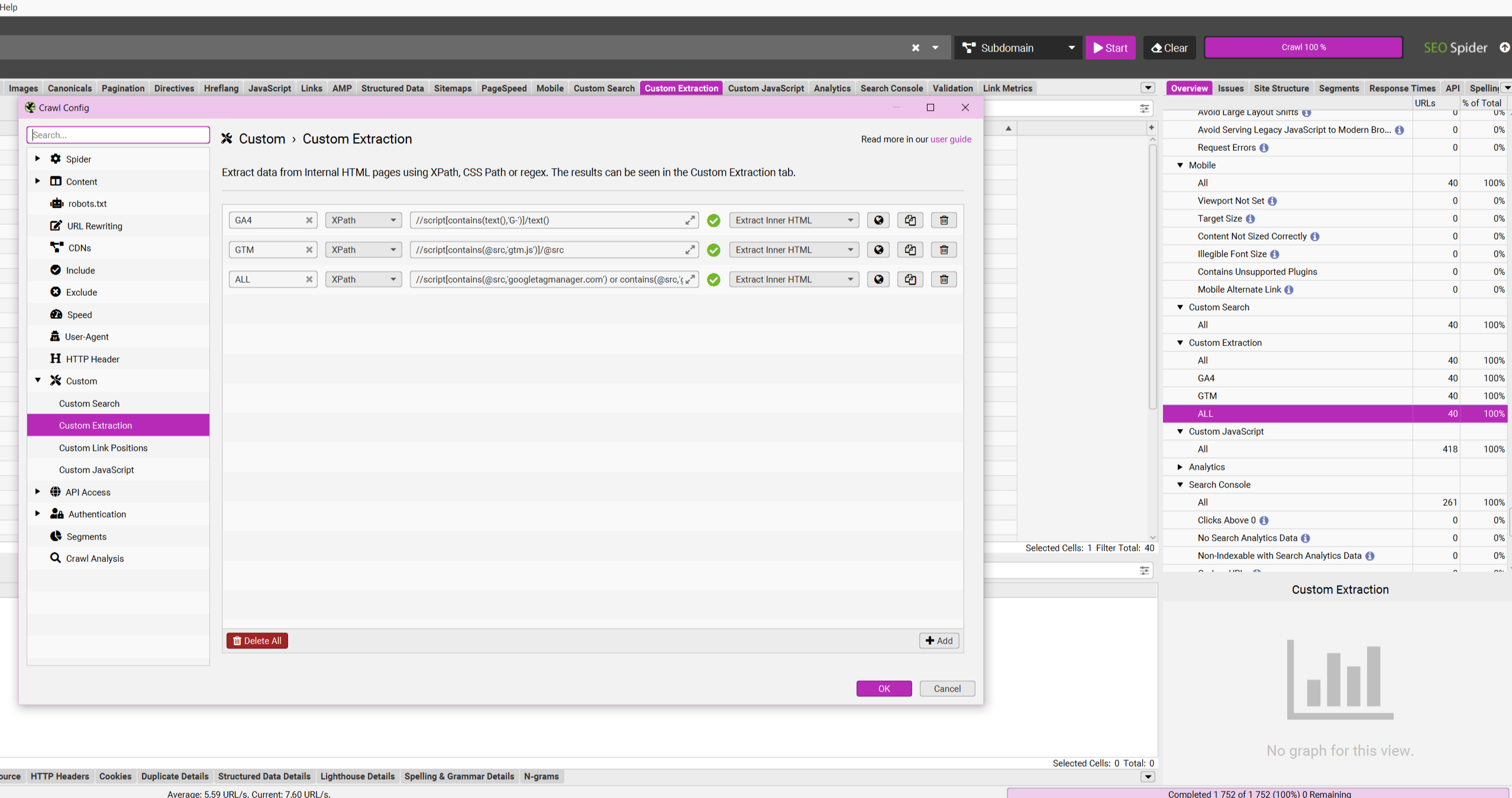
Setup steps:
- Run a crawl in Spider mode.
- Go to Configuration → Custom → Extraction.
- Create a new rule and give it a clear name.
- Paste the XPath expression for the data you need.
- Choose what to extract: text or an attribute.
- Start the crawl, or restart it if it is already running.
Here are a few examples:
| Task (what to extract) | XPath query | Why it matters |
|---|---|---|
| Is a Google Analytics (GA4) tag installed? | //script[contains(text(),’G-‘)]/text() | Quick bulk check that analytics is actually present on pages |
| Google Tag Manager scripts | //script[contains(@src,’gtm.js’)]/@src | Audit tags and triggers across the whole site |
| All external links (excluding your domain) | //a[contains(@href,’http’) and not(contains(@href,’yourdomain.com’))]/@href | Find unwanted outbound links and review partner placements |
| JSON-LD structured data | //script[@type=’application/ld+json’]/text() | Check presence, validity, and completeness of structured data |
| First paragraph after each H2 | //h2/following-sibling::p[1] | Review how strong your intros are inside each logical block |
| Large text blocks | //div[string-length(text()) > 500] | Find pages with enough textual content for organic visibility |
Practical example! You upload a list of 10,000 URLs into Spider, add a rule to collect emails using //a[starts-with(@href,'mailto:')]/@href.After the crawl, you have a clean contact list for outreach that would take weeks to collect manually.
More useful queries:
- Phone numbers:
//a[starts-with(@href,'tel:')]/@href; - Social links:
//a[contains(@href,'facebook.com') or contains(@href,'x.com') or contains(@href,'linkedin.com')]/@href.
4. For more advanced tasks: Python
When you need to deal with anti-bot protection, render JavaScript, or scrape tens of thousands of pages, Python becomes the next step. Typical choices are libraries like lxml, BeautifulSoup, or Scrapy.
These tools give full control over extraction and crawling. You can use proxies, rotate user agents, handle JS-driven content, and build more complex crawl logic. At the same time, you can start small, for example, with simple scripts that automate exports and data pulls from Google Sheets.
Is XPath worth learning? The short answer is yes
SEO is getting more analytical. The role is shifting from basic keyword collection to deeper data analysis and automation. XPath is one of the skills that supports that shift.
👌 A baseline skill that pays off
If you want to go further, work through real cases, non-trivial queries, and automation patterns, we share more in our blog and on LinkedIn.
Read more on our blog
Why XPath is useful:
- It saves dozens of hours of routine work.
- It helps extract data that standard tools often miss.
- It enables deeper competitor analysis.
- It helps write precise tasks for developers: “Fix the ‘alt’ attribute for elements returned by this query.”
If it has to be done, it has to be done
XPath is a move from manual checks to automated analysis. It changes the workflow: instead of relying on whatever a tool exports by default, it becomes possible to extract exactly the data a task needs.
It simplifies routine SEO work and speeds up data collection. The goal is to spend less time on mechanics and more on analysis and decisions. Instead of manual checks and long exports, headings, text blocks, prices, or contacts can be collected across the whole site in minutes.
This matters most when the site has many pages and time is limited. The entry barrier is low, and the payoff is big. There is no need to memorise the entire syntax in a day. It works better as a “solve one task at a time” skill.